
SuperGUILib V2 - Enhanced Minecraft GUI Library
A modern, easy-to-use GUI library for Minecraft 1.21.11 (Fabric) that makes creating beautiful user interfaces simple and fun!
🎮 What is SuperGUILib?
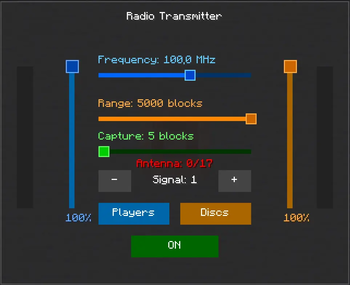
SuperGUILib is a powerful toolkit that helps Minecraft mod developers create stunning graphical user interfaces without dealing with complex rendering code. Think of it as a "GUI builder" that lets you create menus, settings screens, and interactive displays with just a few lines of code!
Perfect for:
- Settings menus
- Custom inventories
- Interactive displays
- Configuration screens
- In-game tools and utilities
✨ Key Features
- 🎨 Beautiful Pre-styled Components - Buttons, sliders, text fields, and more
- 🖱️ Interactive Elements - Click sounds, hover effects, cooldowns
- 📜 Auto-scrolling - Automatically handles content overflow
- 🎯 Item Display - Show Minecraft items with tooltips
- 🎵 Custom Sounds - Add audio feedback to your UI
- 📱 Responsive Design - Adapts to different screen sizes
- 🚀 Easy to Use - Simple builder pattern API
🚀 Quick Start
Try It In-Game
Run these commands to see examples:
/sgl-v2 testgui          - Enhanced examples menu with all features
/sgl testgui             - Original examples menu
Create Your First GUI
import org.stepan1411.super_gui_lib.client.api.GuiBuilder;
import net.minecraft.client.gui.screen.Screen;

public class MyFirstGUI {
    public static Screen create() {
        return GuiBuilder.create("My Settings")
            .panelSize(300, 200)

            .label("Welcome to My Mod!")
                .color(0xFFFFFF00)
                .add()

            .button("Click Me")
                .onPress(() -> System.out.println("Hello!"))
                .add()

            .slider("Volume")
                .value(0.7)
                .onChange(value -> setVolume(value))
                .add()

            .build();
    }
}
That's it! You just created a GUI with a label, button, and slider in under 20 lines of code!
📚 Code Examples
Example 1: Simple Settings Menu
Screen settingsGui = GuiBuilder.create("Game Settings")
    .panelSize(350, 250)

    .slider("Master Volume")
        .value(0.8)
        .fillColor(0xFF00FF00)
        .onChange(vol -> game.setVolume(vol))
        .add()

    .slider("Brightness")
        .value(0.5)
        .fillColor(0xFFFFAA00)
        .onChange(bright -> game.setBrightness(bright))
        .add()

    .button("Apply")
        .surface(Surface.DARK_PANEL)
        .onPress(() -> saveSettings())
        .add()

    .button("Cancel")
        .onPress(() -> closeScreen())
        .add()

    .build();
Example 2: Interactive Button with Cooldown
GuiBuilder.create("Combat Menu")
    .panelSize(300, 200)

    .button("Quick Attack")
        .cooldownSeconds(1.0)  // 1 second cooldown
        .onPress(() -> player.attack())
        .add()

    .button("Heavy Attack")
        .cooldownSeconds(3.0)  // 3 second cooldown
        .surface(Surface.flat(0xFF660000))
        .onPress(() -> player.heavyAttack())
        .add()

    .build();
Example 3: Text Input Form
GuiBuilder.create("Player Registration")
    .panelSize(350, 250)

    .label("Enter your name:").add()

    .textField()
        .placeholder("Name...")
        .textOnly()           // Only letters allowed
        .maxLength(20)
        .onChange(name -> playerName = name)
        .add()

    .label("Enter your age:").add()

    .textField()
        .placeholder("Age...")
        .numbersOnly()        // Only numbers allowed
        .maxLength(3)
        .onChange(age -> playerAge = age)
        .add()

    .button("Submit")
        .onPress(() -> registerPlayer())
        .add()

    .build();
Example 4: Custom Styled Menu
GuiBuilder.create("Styled Menu")
    .panelSize(400, 300)
    .panelSurface(Surface.flat(0xE0101010).and(Surface.outline(0xFF00AAFF)))

    .label("Super Cool Menu")
        .color(0xFF00FFFF)
        .scale(2.0f)
        .shadow(true)
        .add()

    .button("Neon Button")
        .size(250, 25)
        .surface(Surface.flat(0xFF003366).and(Surface.outline(0xFF00FF00)))
        .onPress(() -> doSomething())
        .add()

    .build();
🎨 Available Components
| Component | Description | Use Case |
|---|---|---|
| Button | Clickable button with cooldown support | Actions, navigation |
| Slider | Horizontal/vertical value selector | Volume, brightness, settings |
| Label | Text display with styling | Titles, descriptions |
| TextField | Text input with validation | User input, search |
| ItemDisplay | Show Minecraft items with tooltips | Inventories, showcases |
| VolumeMeter | VU-meter style indicator | Audio levels, progress |
| ScrollContainer | Auto-scrolling container | Long content lists |
🎯 Component Features
Buttons
- Custom colors and surfaces
- Click sounds
- Cooldown system
- Hover effects
- Dynamic text updates
Sliders
- Horizontal and vertical
- Custom colors (track, fill, handle)
- Value labels
- Real-time callbacks
- Smooth dragging
Text Fields
- Placeholder text
- Text-only or numbers-only validation
- Max length limits
- Custom colors
- Border styling
Item Display
- Show any Minecraft item
- Automatic tooltips
- Scalable size
- Custom backgrounds
- Dynamic updates
📦 Installation
For Mod Developers
- Download
SuperGUILib-*.jar - Add to your project's
libsfolder - Update
build.gradle:
dependencies {
    modImplementation files('libs/SuperGUILib-*.jar')
    include files('libs/SuperGUILib-*.jar')
}
Building from Source
./gradlew build
The compiled JAR will be in build/libs/
📖 Documentation
Full documentation available SGL-WIKI:
- Home - Overview and introduction
- Quick Start - Get started in 5 minutes
- Components Guide - All components explained
- Examples - Real-world code examples
- Advanced Features - Scrolling, cooldowns, styling
🎮 In-Game Commands
Test all features with these commands:
/sgl-v2 testgui              - Enhanced V2 menu (recommended!)
/sgl testgui                 - Original examples menu
🌈 Color Format
SuperGUILib uses ARGB (Alpha-Red-Green-Blue) format:
0xAARRGGBB
  ││││││└└─ Blue (00-FF)
  ││││└└─── Green (00-FF)
  ││└└───── Red (00-FF)
  └└─────── Alpha (00=transparent, FF=opaque)
Examples:
0xFFFF0000- Opaque red0x80FF0000- Semi-transparent red0xFF00FF00- Opaque green0x800033FF- Semi-transparent blue
Need help? Check the Wiki
External resources
Project members

SurvivalWorld Season 4

Stepan1411
Member